Create an event
Create an event in the portal, select a layout, prepare the photo booth and start guest mode.
An event groups the settings for a specific booking: name, preparation, layout, gallery, printing and the photo booth workflow.
Create an event in the portal
- Open Events in the customer portal.
- Create a new event with a unique name.
- Prepare the gallery, print settings and other event details as needed.
- Save the event and make it available to the photo booth.
Select a layout
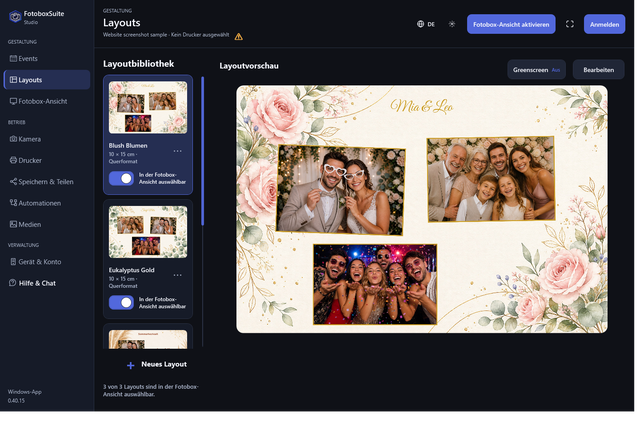
Each event can use a prepared layout. Layouts help you check output in advance and keep it consistent during the event.
Prepare the photo booth
On site, start the Windows app, connect the appropriate device and load the prepared event. Then briefly check the camera, live view and printer.
Start guest mode
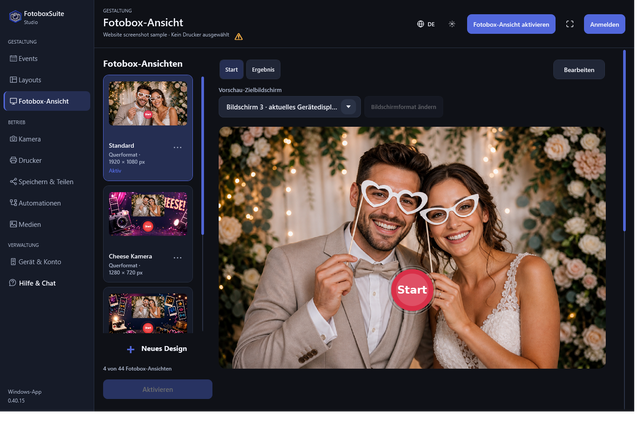
Guest mode is the interface for guests. It guides them through live view, countdown, capture and output options. Once everything has been checked, the photo booth can enter guest operation.
A good event start is straightforward: select the event, take a test photo, check the print, test the QR code and then enable guest mode.